


 WINDOWS
 Office
 Windows Server
 Antivirus
 Utilities
 Professional Software
 PACKS
PACKS
 Plantillas Excel
- New
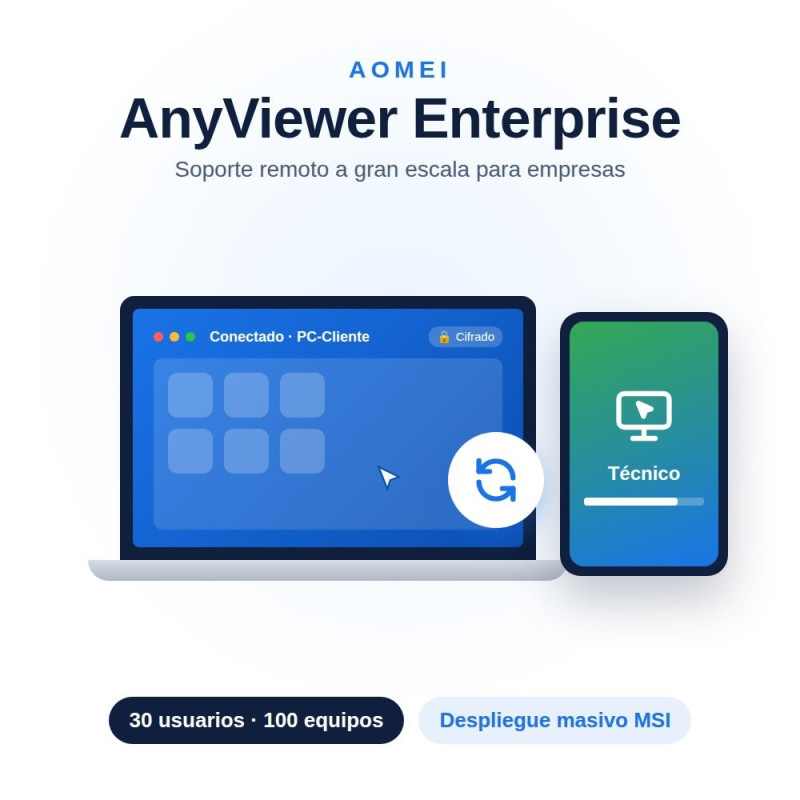
AnyViewer Enterprise license: cloud-based remote access and PC control software for businesses, with up to 30 licensed users, 100 login devices and 500 simultaneous connections. Account and activation details delivered by email instantly.
30 licensed usersChoose the duration: 1, 3 or 6 yearsInstant email delivery
La Tienda de las Licencias · Spanish company · Official invoicing and support in your language · EUR, ARS, MXN, CLP, PEN, COP, USD.
| Licensed users | Up to 30 licensed users on the same business account. |
|---|---|
| Login devices | Up to 100 devices linked to the account to log in. |
| Currently connected devices | Up to 500 devices accessible at the same time. |
| Simultaneous sessions and channels | Unlimited sessions and connection channels, with no concurrent-use restrictions. |
| Screen wall | Unlimited screen walls, with up to 24 monitored devices in each one. |
|---|---|
| Create groups for computers | Organize your company's PCs into groups to manage them faster. |
| Deployed team devices | No limit on the number of devices deployed for your whole team. |
| Mass deployment (MSI) | Install AnyViewer on many computers at once using an MSI package. |
| Role permission management | Assign different access levels to each member of your team. |
| Licensed users | 30 | 10 | 1 | 1 |
|---|---|---|---|---|
| Login devices | 100 | 30 | 10 | 5 |
| Currently connected devices | 500 | 200 | 100 | 30 |
| Screen wall | Unlimited (24 dev.) | 3 (9 dev.) | 1 | 1 (2 dev.) |
| Mass deployment (MSI) | Yes | No | No | No |
| Role permission management | Yes | Yes | No | No |
| Supported systems | Windows, macOS, iOS and Android |
|---|---|
| Connection | Requires an internet connection; proxy support included |
| Security | Encrypted connection, two-factor authentication and access lists |
Specific References
AnyViewer Enterprise license: cloud-based remote access and PC control software for businesses, with up to 30 licensed users, 100 login devices and 500 simultaneous connections. Account and activation details delivered by email instantly.
30 licensed usersChoose the duration: 1, 3 or 6 yearsInstant email delivery
La Tienda de las Licencias · Spanish company · Official invoicing and support in your language · EUR, ARS, MXN, CLP, PEN, COP, USD.